
UK Streaming Guide
Android Box IPTV UK: Complete Setup and Troubleshooting Guide
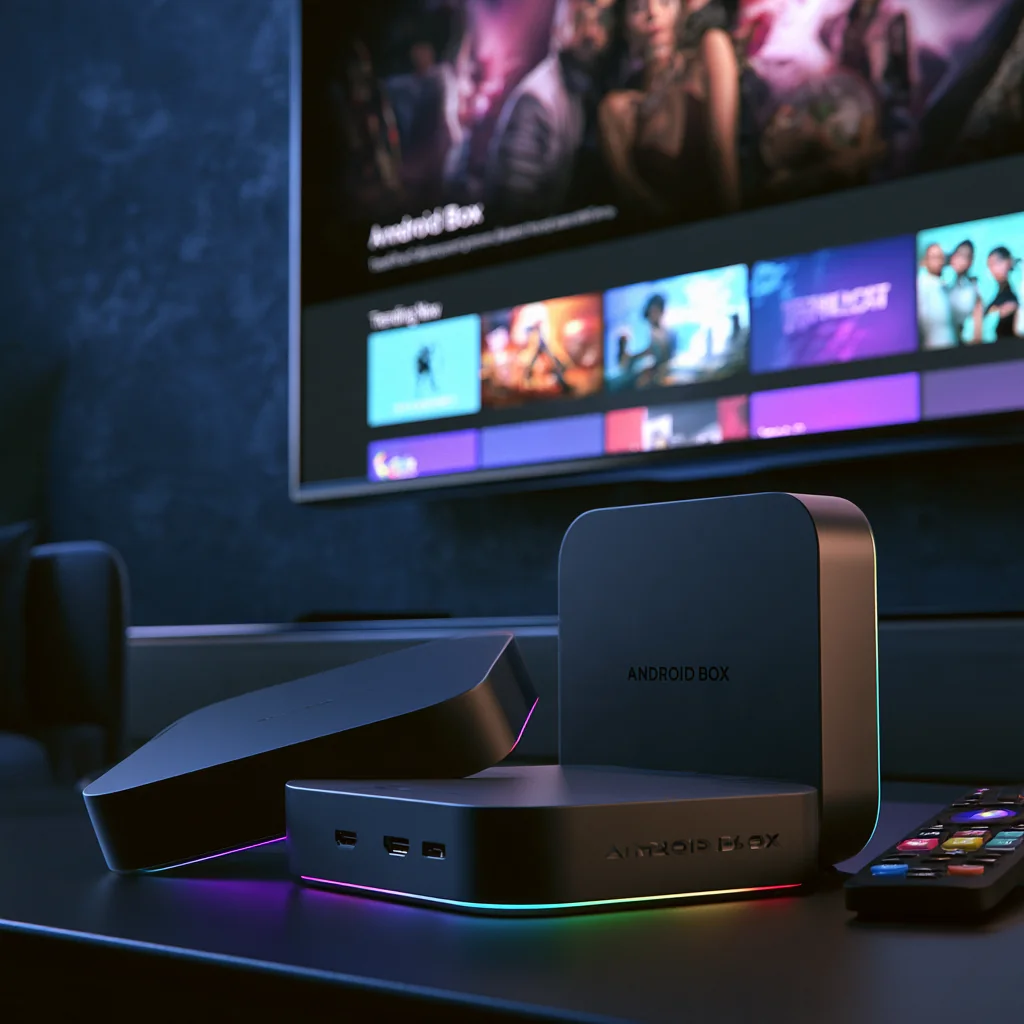
Android Box IPTV setups can provide a flexible way to access internet-delivered television and video, but the experience depends on the box, operating system, app, home network and content source. An Android box is only the device; it does not automatically provide channels or confirm that a service is authorised.
This guide explains how to prepare an Android TV box or Google TV device, check compatibility, install recognised applications, connect a legitimate service and improve playback. It also covers playlists, EPG data, subscriptions, buffering, troubleshooting, privacy and legal checks for UK viewers.
If you are new to internet television, begin with what IPTV is and how it works. The technology describes how content is delivered; it does not independently verify the provider or source behind an application.
Quick answer: The best Android Box IPTV experience depends on a compatible device, a recognised application, a legitimate content source, stable broadband and clear account terms. Check the Android version, app compatibility, billing conditions, privacy information and support options before subscribing.
What Is Android Box IPTV?
IPTV means television or video delivered through an internet connection. An Android box receives data through broadband and displays it on a connected television using a compatible app, player or browser.
An Android box is hardware. Depending on the device, it may run Android TV, Google TV or another Android-based operating system. The device connects to a television through HDMI and typically uses Wi-Fi or Ethernet for internet access.
It is useful to separate the main parts of an Android TV IPTV setup:
- Android box: The physical hardware connected to the television.
- Operating system: The software that controls menus, applications and device settings.
- IPTV app: Software used to access a service or organise compatible content.
- IPTV player: An application that can display compatible streams or playlist data.
- Provider: The service responsible for the account, subscription and content it offers.
- Playlist or account data: Information used by a compatible app to organise available streams.
- EPG: Electronic programme guide information showing programme titles and times.
An IPTV player Android box app does not automatically supply channels or confirm that a content source has distribution rights. Installing an application from a recognised store confirms only that the software is available through that platform.
Performance depends on hardware capability, software support, available storage, network conditions, application quality and the content source. For further background, read IPTV explained.
Android TV, Google TV and Generic Android Boxes
Android TV is Google's television-focused operating system used on compatible televisions and streaming devices. Google TV is a user interface and viewing experience built on compatible Android TV software, with its own home screen, recommendations and profile features.
Generic Android boxes may use a different Android version, a modified interface or software that is not designed specifically for television use. Some offer broad app access, but their support, updates, certification and remote navigation can vary considerably.
The Google Play Store and app availability may also depend on whether a device is certified and whether an application supports its operating system. Some mobile applications are not designed for remote-controlled television screens, even if they technically install.
| Device type | Main consideration | Possible issue |
|---|---|---|
| Certified Android TV device | Designed for television use | App availability still depends on compatibility |
| Google TV device | TV-focused interface and profiles | Menus differ between manufacturers |
| Generic Android box | May offer flexible hardware | Software, updates and certification may vary |
| Android Smart TV | Built-in television platform | Older models may have limited app support |
| External Android streaming device | Can extend an older TV | Requires HDMI, power and network access |
Before beginning an Android box IPTV setup, check the device's operating system, Android version and certification information where available. A generic box may not provide the same predictable experience as a supported Android TV or Google TV device.
What to Check Before Setup
Preparing the device first can prevent compatibility and playback problems. Use this checklist before installing an application or subscribing to a service:
- Exact Android box model.
- Android TV, Google TV or another Android operating system.
- Android version.
- Device certification where available.
- Available storage.
- HDMI connection and television input.
- Stable broadband connection.
- Wi-Fi signal strength near the box.
- Google account where required.
- Recognised IPTV or media-player app availability.
- Legitimate account details.
- Subscription renewal and cancellation terms.
- Privacy policy and customer-support information.
Check whether the application supports your exact device, not merely Android in general. A service may support certified Android TV hardware but not a generic box using a modified operating system.
Update the device before installing apps where an official update is available. Updates may improve security, compatibility and performance, although they cannot make an unsupported application compatible.
Before paying, read the provider's subscription information. The IPTV subscription UK guide covers billing and account considerations, while the IPTV free trial guide explains what to test where a clearly identified provider offers a trial.
Installing a Recognised App on Android TV or Google TV
Use a recognised app source and review the publisher before installing software. The exact menu names vary by device, but the general process is similar.
- Turn on the Android box and connect it to the television.
- Connect the device to the internet.
- Open the Apps area or Google Play Store.
- Search for the recognised application by its official name.
- Review the publisher, description, permissions and compatibility information.
- Select Install.
- Wait for the installation to finish.
- Open the application.
- Sign in using legitimate account details where required.
- Test navigation, playback, programme information, subtitles and settings.
- Install future updates through the recognised source.
Google explains that Google TV users can search or browse for compatible apps and select Install. See Google's official Google TV app installation guide. Android TV devices commonly use the Play Store for supported applications; see Google's Android TV app guidance.
Do not install unknown files simply because an application is unavailable in the official store. Do not disable security settings or assume that an app listing proves the legality of the content source. Use the recognised app route, check the publisher and contact official support if you are unsure about compatibility.
Choosing an IPTV App or Player
The best IPTV for Android box users depends on the hardware, viewing habits, accessibility needs and legitimate service they intend to use. A simple, stable interface may be more useful than an application with a long list of unnecessary features.
Features worth considering
- Remote-friendly navigation.
- Search and content categories.
- Groups or folders.
- Favourites and watchlists.
- An electronic programme guide.
- Programme descriptions.
- Subtitle and caption controls.
- Audio-language options where supplied.
- Multiple profiles and parental controls.
- Playback and resume controls.
- Account settings and privacy controls.
- Regular updates and clear developer documentation.
- Compatibility with the Android box.
An IPTV player organises and plays compatible streams. It does not automatically provide channels, verify a provider or create content rights. The app and the service supplying the account should be assessed as separate parts of the setup.
For more information, read the IPTV player guide, explore best IPTV apps UK and see the IPTV Smarters Pro guide.
Connecting a Legitimate Service or Playlist
Use account or playlist details only from an identifiable, legitimate source. Follow the source's official documentation and never publish private credentials or account links in public websites, forums or social-media posts.
Before connecting a service, check:
- Whether it supports your specific Android box.
- Whether Android TV or Google TV is required.
- Whether the app supports your operating-system version.
- Whether the subscription renews automatically.
- How cancellation works and whether refund terms are published.
- What device or household-use rules apply.
- How personal and payment information is handled.
- Whether the content source has appropriate distribution rights.
Test the service on the actual box and television you plan to use. Try search, categories, programme-guide information, subtitles, playback controls and account settings rather than assuming that successful sign-in means the setup is suitable.
A playlist, application, payment or trial does not prove authorisation. For wider provider-assessment criteria, see best IPTV providers UK.
Android Box IPTV Performance and Buffering
Buffering and poor playback can result from the box, application, home network, service delivery or a combination of factors. No Android box can guarantee uninterrupted playback in every situation.
Common causes include:
- Weak Wi-Fi or distance between the router and box.
- Wireless interference and busy household internet use.
- Outdated Android software or applications.
- Limited storage.
- Low-powered or uncertified hardware.
- Provider-side delivery problems.
- High-resolution playback exceeding the available connection.
Try the following safe steps:
- Restart the Android box.
- Close and reopen the application.
- Restart the router where appropriate.
- Improve the Wi-Fi signal or move the router and box.
- Reduce competing internet activity.
- Check system and application updates.
- Clear the app cache if the device provides that option.
- Free storage if the box is close to full.
- Test Ethernet where supported.
- Try another supported item or application.
- Contact official support if the problem continues.
Ofcom recommends testing broadband speeds at different times, keeping the router clear of interference and reducing heavy simultaneous internet activity. It also notes that a wired Ethernet connection can provide a more reliable connection where practical. See Ofcom's broadband guidance.
For more troubleshooting information, read fix IPTV buffering.
Android Box IPTV Troubleshooting
Work through simple checks before changing advanced settings or installing additional software.
| Problem | Possible cause | Safe troubleshooting step |
|---|---|---|
| App is missing | Device or app incompatibility | Check the Play Store and device support |
| App will not install | Storage, account, network or compatibility issue | Update the system and review available storage |
| App will not open | App or operating-system error | Restart the box and check for updates |
| Login fails | Incorrect details or account problem | Re-enter details and contact official support |
| Playlist will not load | Incorrect, expired or unsupported information | Check details with the legitimate source |
| Channels are missing | Playlist, account or EPG issue | Refresh the data and test another item |
| Buffering occurs | Wi-Fi, congestion, hardware or delivery issue | Test the connection and reduce network load |
| Audio and video are out of sync | App or stream issue | Restart playback and test another item |
| EPG is empty | Missing or outdated guide data | Refresh the guide or contact the legitimate source |
| App keeps crashing | Compatibility, storage or software issue | Update the app and clear cache if available |
| Remote is slow | App design, device load or low-powered hardware | Restart the box and close unused apps |
If IPTV is not working, establish whether the issue affects one programme, one app or the whole device. A single missing item may indicate a playlist or guide issue, while a complete failure may involve the network, account or software.
For additional guidance, see IPTV not working, channels not loading and the IPTV EPG guide.
Android Box Versus Other Streaming Devices
Android boxes can offer broad application compatibility, but the experience depends heavily on the device's certification, software support and hardware quality.
A Fire TV Stick may provide a simpler remote-focused interface and a more controlled app environment. Samsung and LG Smart TVs avoid the need for an additional box, although their operating systems may offer narrower app availability. Google TV devices combine a TV-focused interface with access to supported Android applications.
Apple TV and other platforms may suit households that prioritise a particular operating system, remote experience or account ecosystem. Mobile phones, tablets and computers provide flexibility, but their interfaces are not always ideal for living-room viewing.
Generic Android boxes may be attractive because of their hardware options, but software updates, security, certification and remote navigation can vary. A certified device generally offers a more predictable platform, although compatibility with a particular service still needs to be checked.
For comparisons with other setups, read IPTV on Firestick and Samsung and LG IPTV setup.
Legal and Privacy Considerations
Android boxes are lawful consumer hardware, and IPTV applications and players can be lawful software. The important question is whether the content source has the relevant rights to distribute what it provides.
A device, application, playlist, subscription, payment or VPN does not prove authorisation. Users should assess the provider or source separately from the Android box and player.
Look for:
- An identifiable operator.
- Clear service and subscription terms.
- A visible privacy policy.
- Transparent billing and cancellation information.
- Legitimate app or website access routes.
- Realistic descriptions of available content.
- An official support channel.
Avoid unknown applications, informal payment requests, unrealistic content promises and pressure to subscribe quickly. FACT publishes consumer guidance on illegal streaming, including information about potential security and fraud risks.
The National Cyber Security Centre guidance provides broader advice about online safety. Review app permissions, use strong passwords, keep the device updated and avoid sharing account details publicly.
A VPN does not grant content rights, override geographic restrictions or make unauthorised streaming legal. It can also affect speed, latency and buffering. For broader context, read IPTV legality UK and IPTV VPN UK.
Android Box IPTV Setup Checklist
| Check | Why it matters | What to look for |
|---|---|---|
| Device type | Determines app and system compatibility | Android TV, Google TV or another Android version |
| Certification | Affects app access and updates | Recognised device certification where applicable |
| Android version | Determines software support | Current supported version |
| Storage | Helps apps run correctly | Enough free space for apps and updates |
| App source | Reduces software risk | Recognised Google Play Store or official developer source |
| Network | Affects playback stability | Reliable Wi-Fi or supported Ethernet |
| Remote navigation | Affects everyday usability | Responsive, TV-friendly controls |
| EPG support | Improves programme discovery | Compatible and current guide data |
| Billing terms | Prevents unexpected charges | Clear pricing and renewal information |
| Legal transparency | Supports responsible use | Identifiable source and credible rights information |
FAQ
What is Android Box IPTV?
Android Box IPTV means using an Android-based streaming box to access television or video delivered through an internet connection. The box is the hardware, while the app, player and content provider are separate parts of the setup.
Can I use IPTV on any Android box?
Not necessarily. Compatibility depends on the Android version, device certification, hardware, app support, remote controls and network connection. Check the application and provider's official requirements before subscribing.
What is the best IPTV app for Android box users?
There is no single best app for every device. Look for recognised availability, remote-friendly menus, useful search and guide features, privacy information, regular updates and compatibility with the legitimate service you intend to use.
How do I install an IPTV player on Android TV?
Use the Google Play Store or another recognised official source. Search for the application, verify its publisher and compatibility information, install it, then sign in with legitimate account details if required. Avoid unknown files and instructions that weaken device security.
Why is Android Box IPTV buffering?
Buffering can be caused by weak Wi-Fi, router distance, household congestion, outdated software, limited storage, low-powered hardware, application problems or provider-side delivery. Test the network, restart the equipment and check for updates.
Why is my IPTV app not working on Android box?
The problem may involve the app, account, playlist, device, network or service. Restart the box and app, check updates, confirm account details, test another supported item and contact official support if the issue remains.
Is Android Box IPTV legal in the UK?
Android hardware and IPTV technology are legal. A particular service must have the appropriate rights to distribute its content. The device, app, playlist, subscription or payment does not independently establish those rights.
Conclusion
An Android box can provide a flexible platform for compatible IPTV apps, but the experience depends on the operating system, device certification, application, home network and content source. Use recognised app sources, confirm compatibility before paying and test playback on the actual box you plan to use.
A careful Android box IPTV setup should include current software, stable broadband, clear account terms, privacy information and an official support route. Troubleshoot the device, app, network, playlist and provider separately rather than assuming one cause.
The best IPTV UK choice is the one that fits your household's devices and viewing needs while providing transparent information about access, billing and content rights.